Inbound rules
What happens to each WhatsApp message before the AI answers, for example, passing the customer to their assigned salesperson.
An inbound rule decides what to do with a WhatsApp message before the AI answers. The system evaluates it, not the agent: it's a fixed rule that is either met or not.
The typical use is passing the customer to their salesperson: if the number writing in belongs to a customer who already has an assigned salesperson, the agent doesn't answer, the customer gets a fixed message and the salesperson gets an alert.
They're set up under Settings → Inbound rules (in the Features group), and only an owner can change them. For now this screen is only in Spanish, so below we quote its labels in Spanish, with a translation.
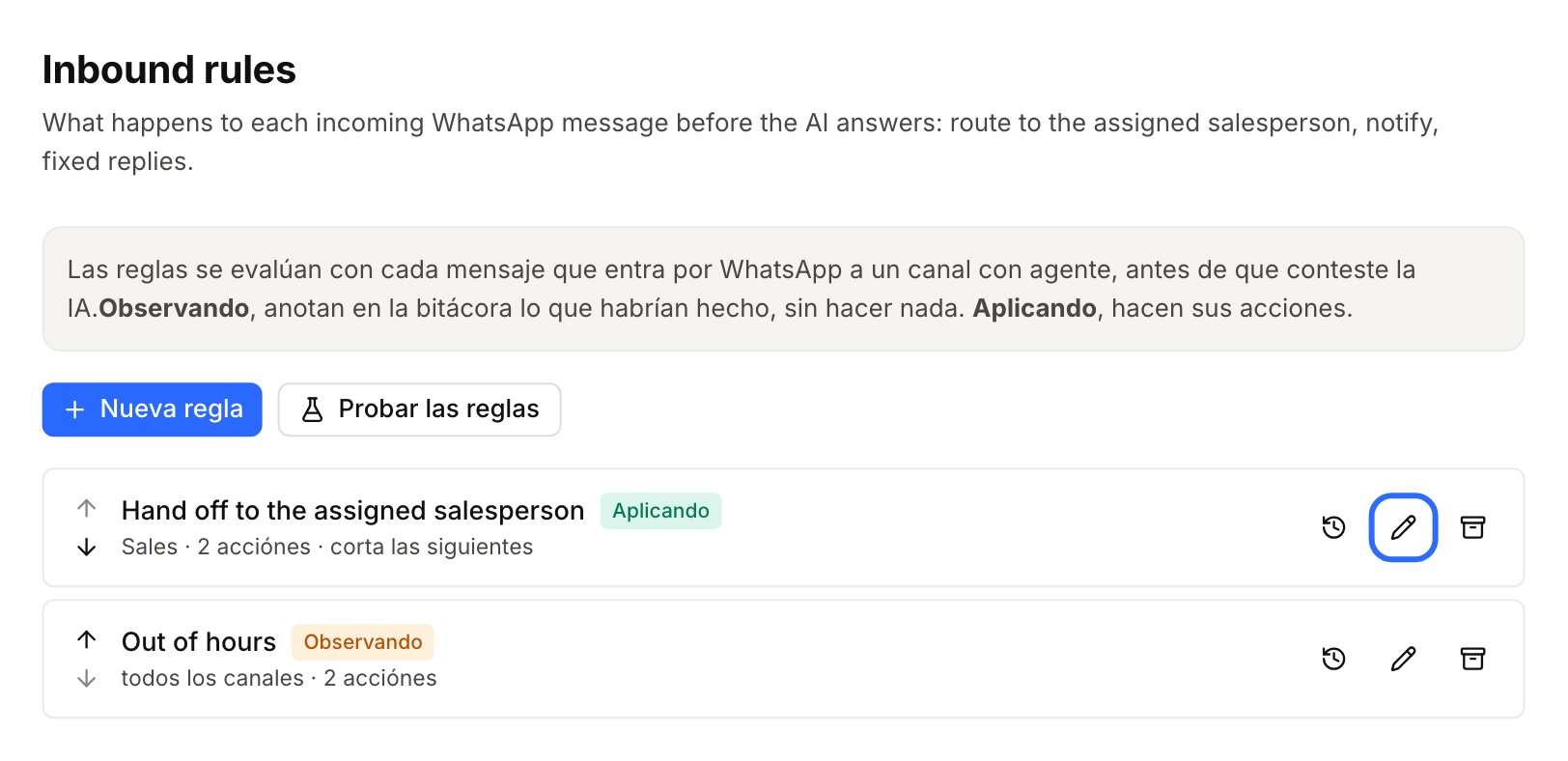
How they're evaluated
- On every message that comes in through WhatsApp to a channel that has an agent.
- In order, top to bottom. Each rule's arrows change its place.
- A rule with Si dispara, no evaluar las reglas siguientes (if it fires, don't evaluate the following rules) stops there: the ones below aren't checked.
Creating a rule
Click Nueva regla (new rule) and fill in:
| Field | What to enter |
|---|---|
| Nombre (name) | Something clear in the list, such as “Derivar al vendedor asignado” (hand off to the assigned salesperson) |
| Estado (status) | Apagada (off), Observando (observing) or Aplicando (enforcing), below. A new rule starts Apagada |
| Descripción (opcional) (description) | What the rule is for |
| Canales (ninguno = todos) (channels; none = all) | Which channels it applies to |
| Buscar al remitente en una tabla (opcional) (look up the sender in a table) | One of your tables to look up the number writing in: for example, your customer list with their salesperson. You choose the Columna con el teléfono (phone column) and what to do Si el número aparece en más de una fila (if the number appears in more than one row) |
| Cuándo aplica (when it applies) | The conditions (below) |
| Qué hace (what it does) | The actions (below) |
| No repetir mensaje ni aviso por (horas) (don't repeat message or alert for, in hours) | So the customer doesn't get the same thing every time they write. 24 by default. Empty: always |
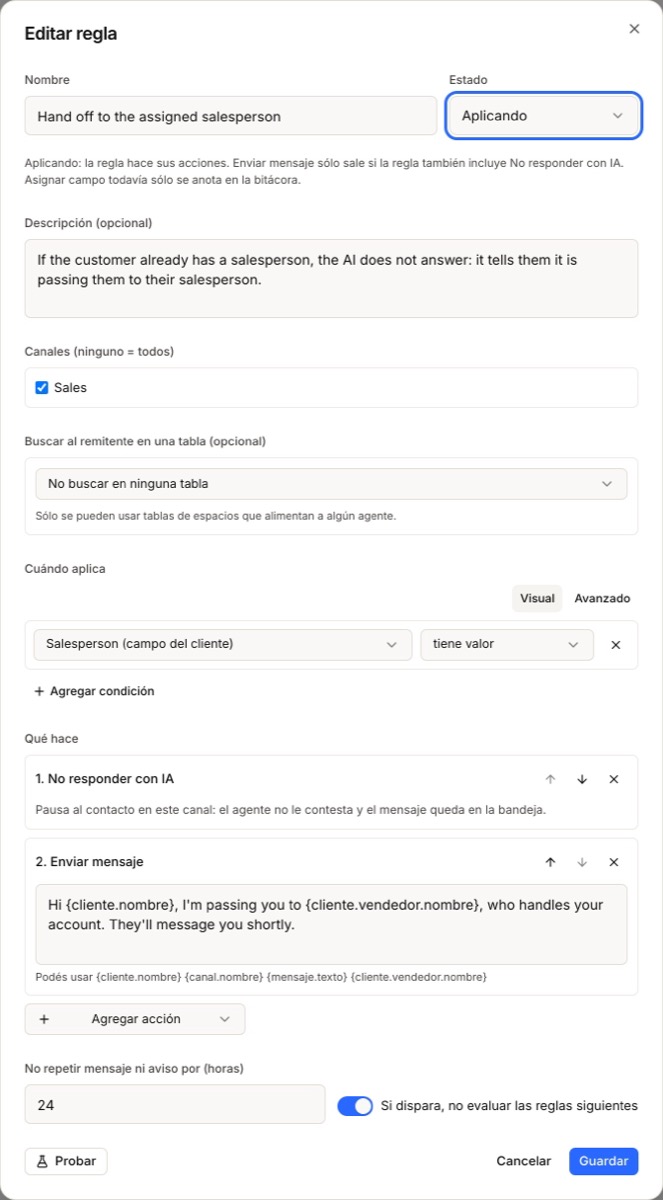
When it applies
Conditions are built in Visual mode (or Avanzado, advanced, by typing them) and joined with y (and) or o (or). With Agregar condición (add condition) you can check:
- customer details: name, email, phone, address, whether they're a new customer, and your own customer fields;
- the channel they came in through;
- the message: its text, and whether it has an attachment;
- the time: day of the week and hour;
- if you looked them up in a table, the columns of the customer's row.
What it does
| Action | What it does |
|---|---|
| No responder con IA (don't answer with AI) | Pauses the contact on that channel: the agent doesn't answer and the message stays in the Inbox. It's the same pause as Pause agent: the chat shows Agent paused and Resume agent undoes it |
| Enviar mensaje (send message) | Sends the customer a fixed text, which can use their details: “Hola {cliente.nombre}, te paso con {cliente.vendedor.nombre}, que es tu vendedor.” |
| Avisar (notify) | Sends an alert to the people of a channel: a fixed one, the channel a customer field points to, or the one a table column points to. You can add a Motivo (reason) |
| Asignar campo (set field) | Sets a value on a customer field. For now it's only written to the log: it doesn't change the data yet |
Two details about Enviar mensaje when the rule is Aplicando:
- It's only sent if the same rule also has No responder con IA. Otherwise the agent would answer on top of the fixed message.
- It's sent once, when the contact becomes paused. If they were already paused, it isn't repeated.
The statuses
| Status | What it does |
|---|---|
| Apagada (off) | Not evaluated |
| Observando (observing) | Evaluated on every message, and it writes to the log what it would have done, without doing anything. It's how you try a rule on real messages with no risk |
| Aplicando (enforcing) | It carries out its actions |
We recommend leaving a new rule on Observando for a few days, checking the Bitácora (log), and only then moving it to Aplicando.
Testing before enforcing
Probar (test, in the editor) and Probar las reglas (test the rules, in the list) simulate a message: you choose the channel, the customer's number, the message, the day and the hour, and you see which rule would fire and what it would do —No responde con IA, Envía: “…”, Avisa a…—. It doesn't send anything or pause anyone.
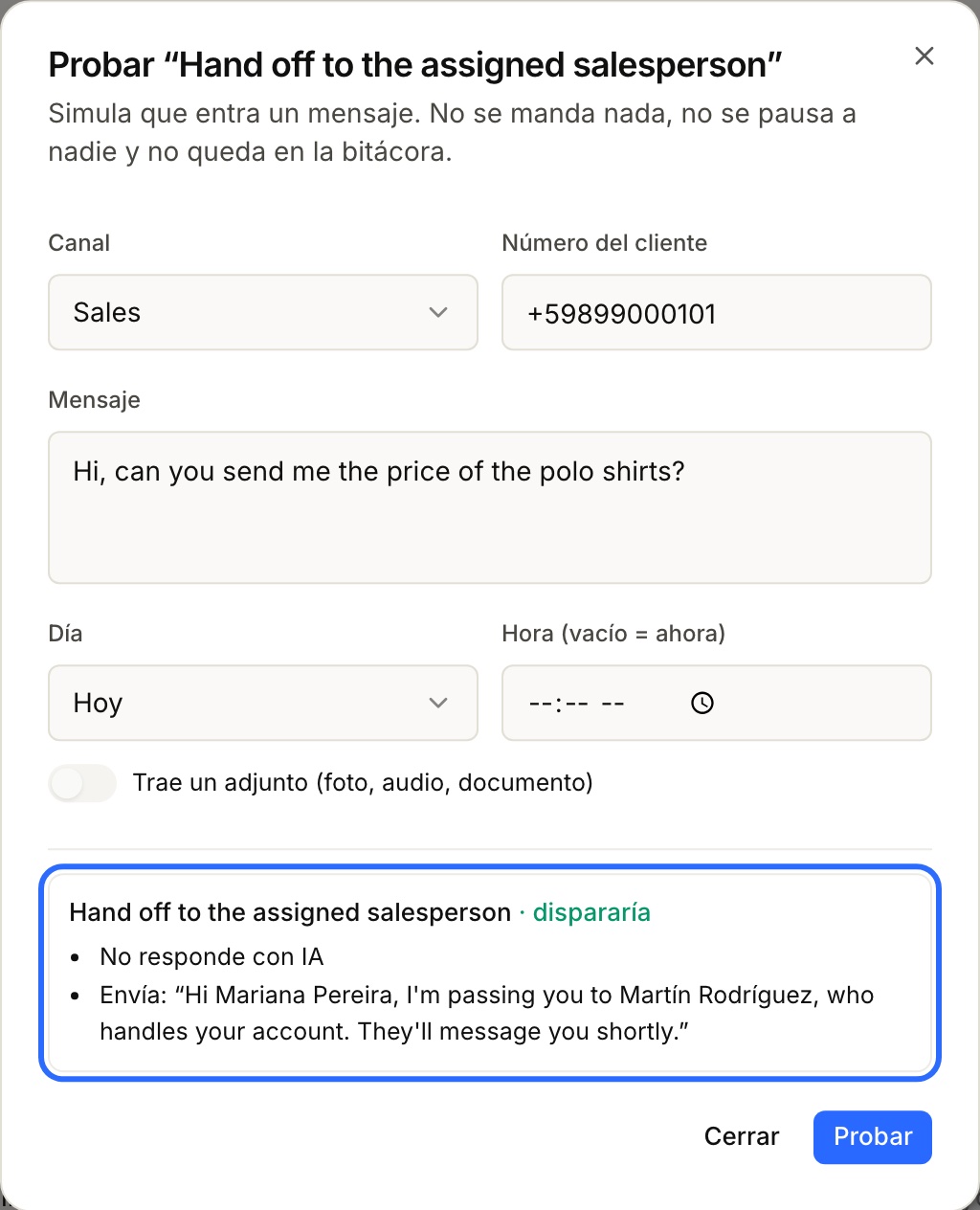
If something wouldn't go out, the test says why: for example, “no se mandaría: la regla no apaga la IA, que va a contestar igual” (it wouldn't be sent: the rule doesn't turn the AI off, so it would answer anyway).
The log
Each rule's Bitácora (log) icon shows every time the rule fired or failed in the last 30 days, with what it did —or would have done, if it's Observando—.
Rules and “Need help”
They're two different things that work together:
| Inbound rule | Agent handoff | |
|---|---|---|
| Who decides | A fixed rule, before the AI answers | The agent, during the conversation |
| Pauses the contact | With No responder con IA | Yes |
| Shows in “Need help” | No | Yes |
| Alerts | With Avisar: it reaches the notifications of the channel's people | With the “Need help” alert |
Each person can turn off rule alerts in their account's notification preferences (Inbound rules).
More about the agent's handoff in How does the order agent work?.
Example: handing off to the assigned salesperson
You have a Customers table with each customer's phone and a Salesperson column with their salesperson's WhatsApp channel.
- Nueva regla, named “Derivar al vendedor asignado”.
- Buscar al remitente en una tabla: Customers, with the Columna con el teléfono.
- Cuándo aplica: the number is in the table.
- Qué hace: No responder con IA, Enviar mensaje (“Hi {cliente.nombre}, I'm passing you to your salesperson.”) and Avisar the people of the channel in the Salesperson column.
- Leave it on Observando, check the Bitácora for a few days and move it to Aplicando.