Inviting someone to your organization
Which email each person you add to the organization gets, what it includes, and what to do if it doesn't arrive.
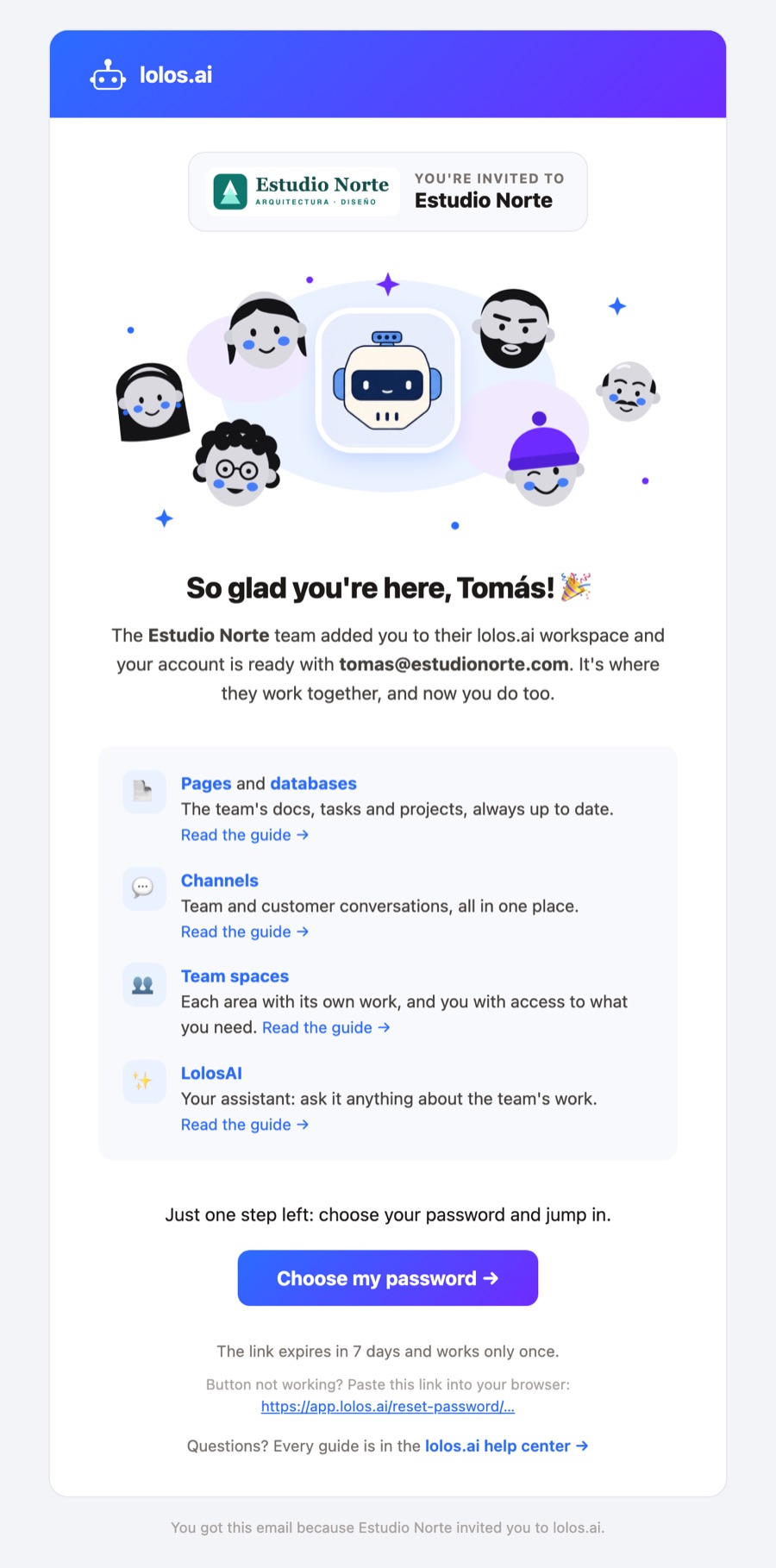
When you add someone to your organization, Lolos sends them a welcome email: it tells them which organization they're joining, what they'll find inside, and gives them a button to get in. There's no need to write to them separately or hand them a password: passwords never travel by email, each person chooses their own.
Adding someone
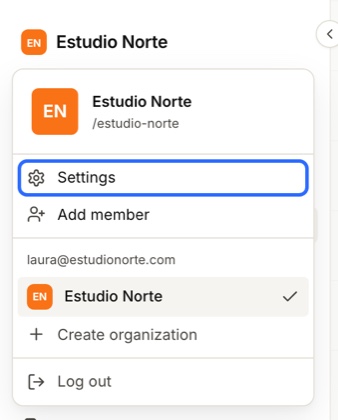
1. Open the settings. Click your organization's name, top left, and choose Settings. In that same menu, Add member is a shortcut straight to step 3.
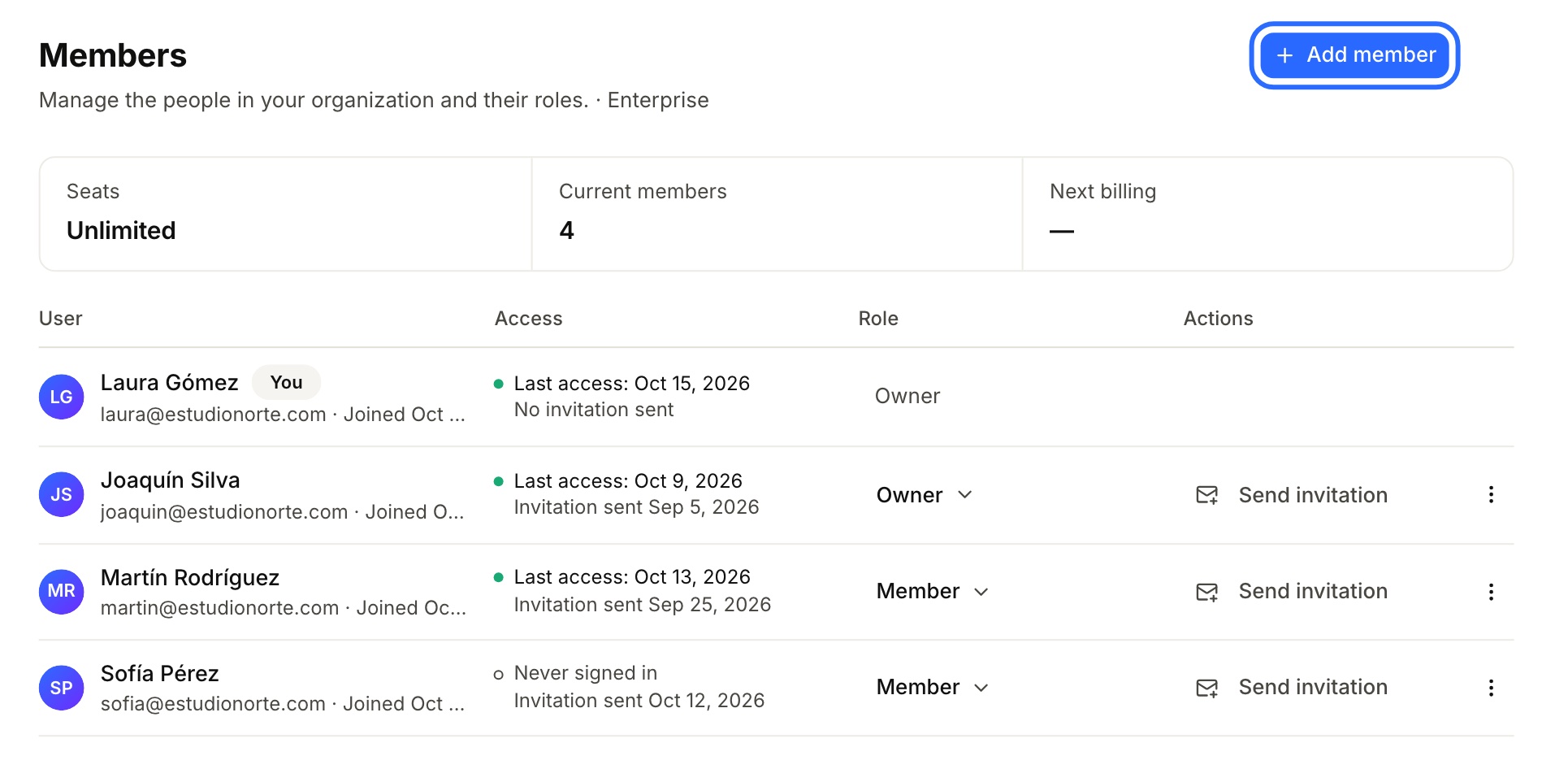
2. Go to Members and click Add member, top right.
3. Fill in their details. Enter their name and email, and pick the role (Member or Owner). To add several people at once, switch to Several people and paste the list of emails.
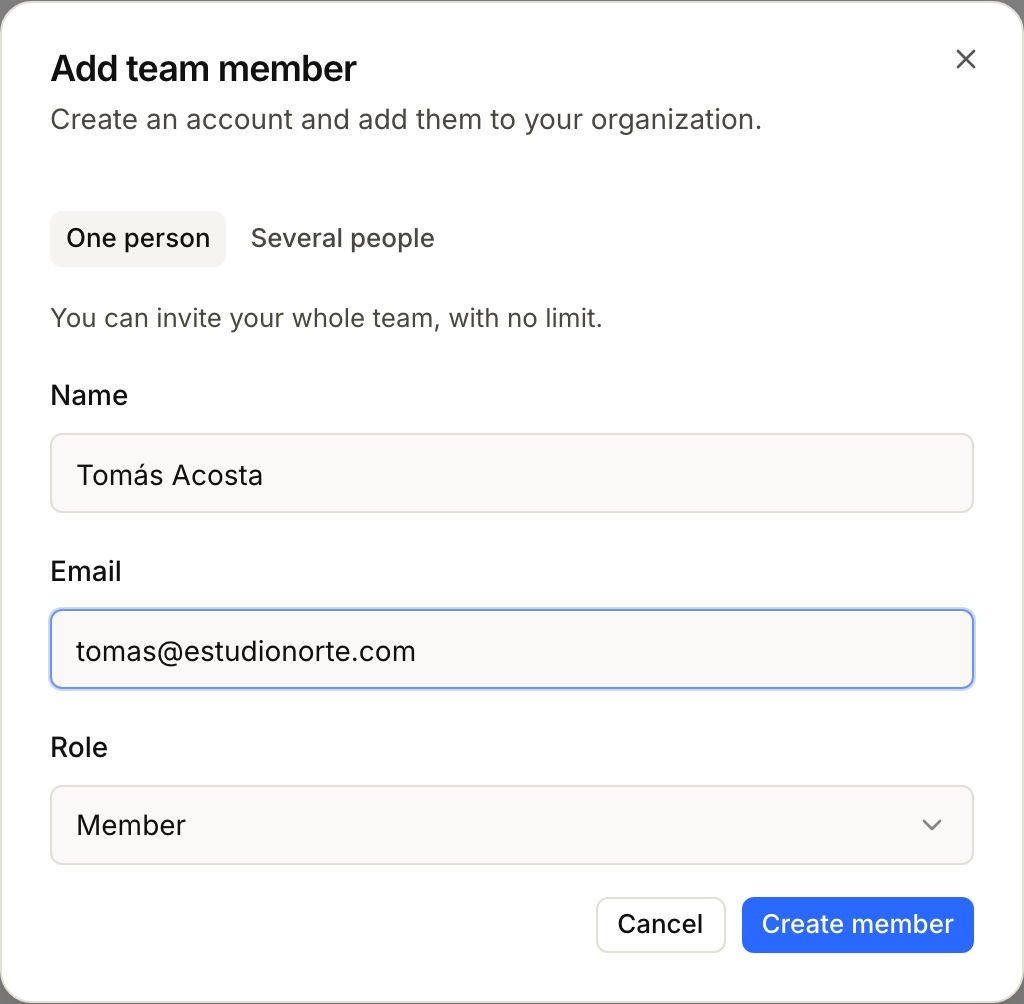
4. Click Create member. The email goes out right away.
If whoever invites is a member (not an owner), the person stays pending approval and the welcome email goes out only once an owner approves them. That way nobody gets invited to a place they can't enter yet.
Which email each person gets
The design is always the same; what changes is the button.
| Situation | Email button | What happens when they click it |
|---|---|---|
| Didn't have a Lolos account | Choose my password | They choose their password and land in the organization. The link expires in 7 days and works only once. |
| Already had an account (with a password or with Google) | Go to your organization | They sign in with their usual account and find the new organization among theirs. Nothing to set up. |
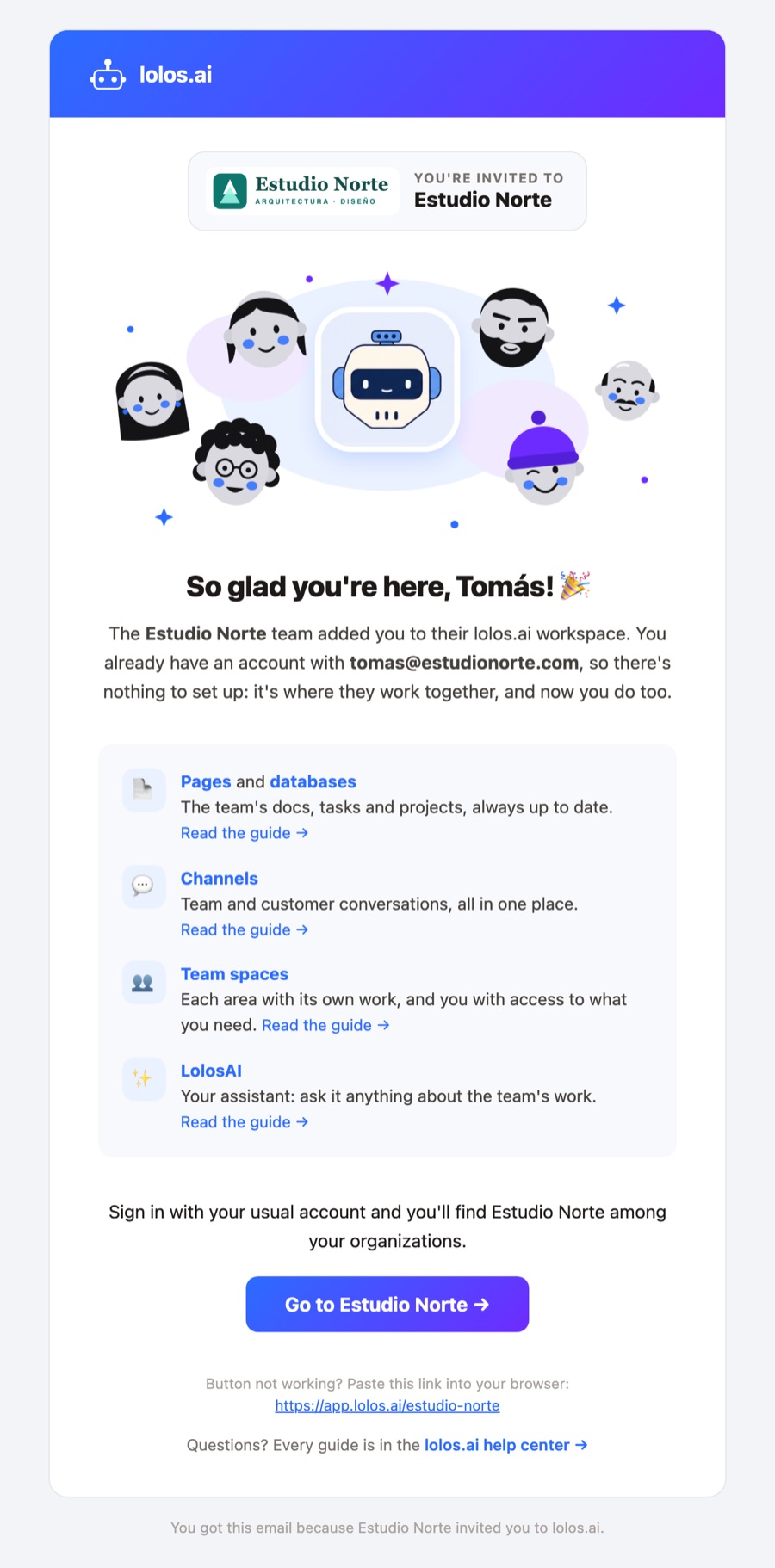
When the person already had an account, the Add member dialog confirms it: “They already had an account: we emailed them a welcome with the link to sign in.” Their email is the same as the one above, with no password to choose:
What the email includes
- The organization, right at the top, with its logo. If you haven't uploaded one yet, the organization's initial is shown instead. See Your organization's logo.
- What's inside, each item linking to its guide in this help center: Pages and databases, Channels, Team spaces and LolosAI. So the person can read how everything works before they even sign in.
- The button to get in, and below it the same link written out, in case the button doesn't work in their email app.
- A link to the whole lolos.ai help center.
Which language it's in
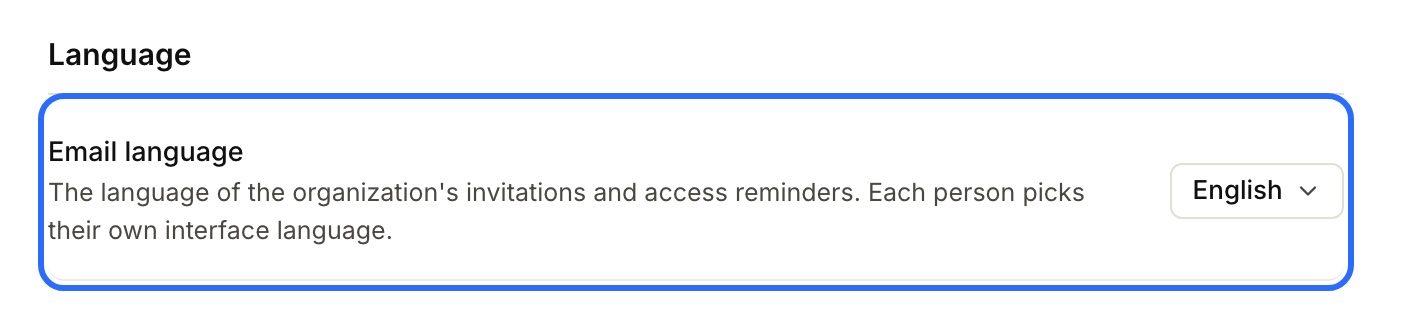
In the organization's language, not yours: the person receiving the invitation hasn't chosen theirs yet. An owner picks the organization's language under Settings → General → Email language (Spanish or English). The links in the email point to the help center in that same language.
Who sends it
The email comes from lolos.ai (no-reply@lolos.ai), with your organization's name in the subject: “Welcome to your organization! 🎉”.
If your organization set up its own mail server under Settings → Email, it goes out from that sender instead.
If it didn't arrive or the link expired
Under Settings → Members, each person has a visible Send invitation button. It sends the email again, with the same design and a new link to choose their password, valid for 7 days. If they already had a password, it keeps working until they choose the new one.
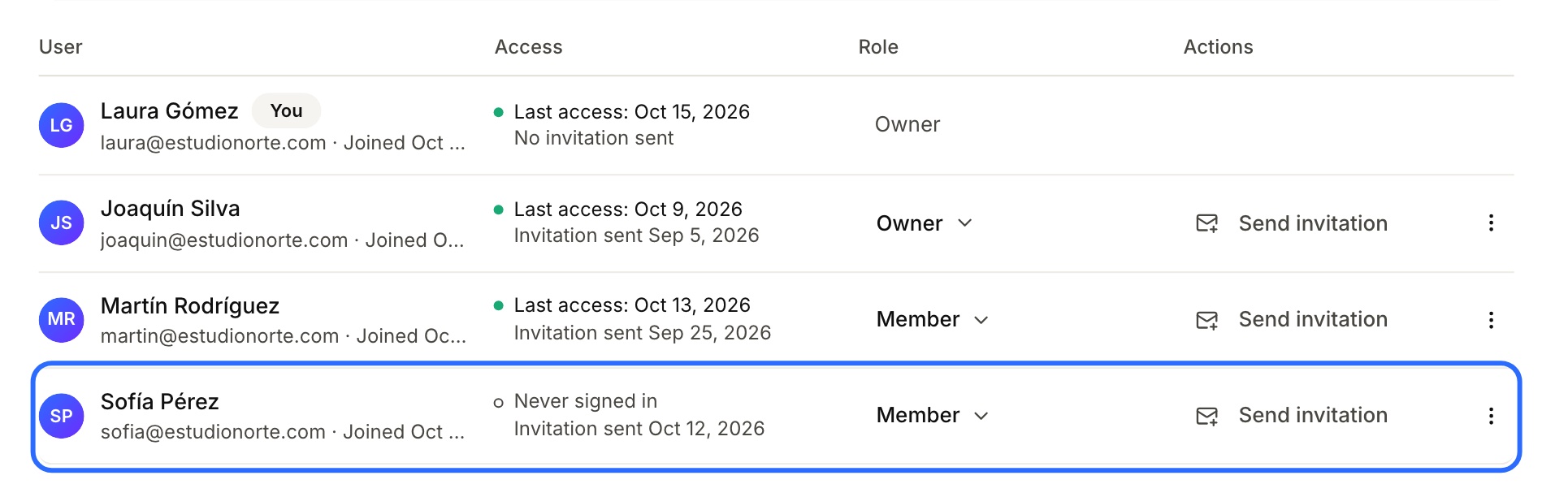
Before resending, check the list's Access column:
- Never signed in, or the date of their last access;
- the date of the last invitation sent. Only what the mail server accepted counts: if there's a date, the email went out. In that case, ask them to check their spam or promotions folder.
Recovering a password
The “Forgot your password?” email uses the same design, with the organization's logo, but without the list of what's inside: it goes straight to the Choose new password button. That link expires in 1 hour and works only once. If the person didn't ask for it, they can ignore it: their password doesn't change.
For now, this email is only available in Spanish.
Changing the email's text
An owner can edit the invitation's text under Settings → Email, in the Plantillas (templates) tab: open Invitación (definir contraseña) to see and change its subject and text. For now, this screen is only in Spanish.
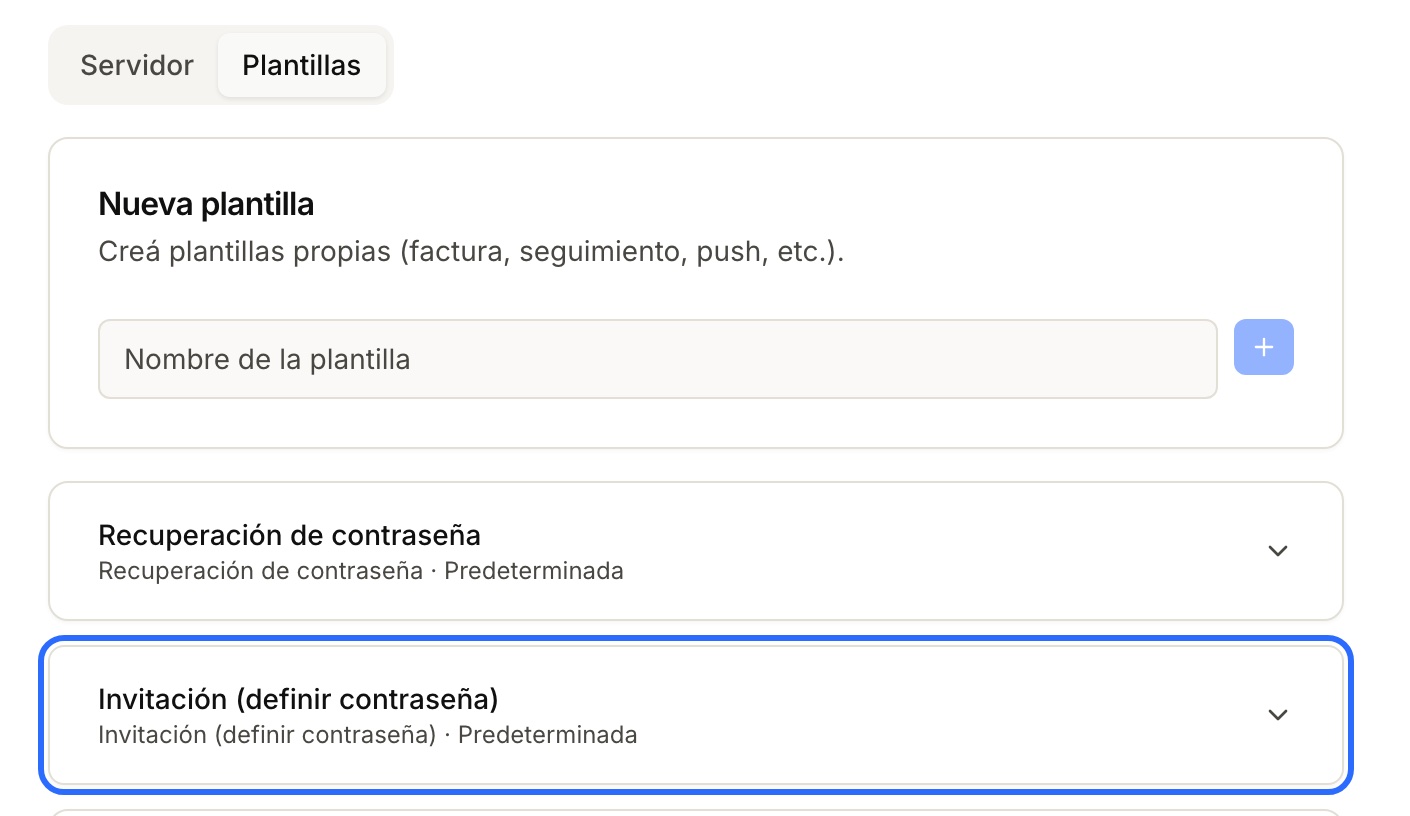
As long as it says Predeterminada (default), that is, as long as you don't edit it, your organization always gets the latest version from Lolos, with every improvement we make to the email. Once you edit it, it says Editada (edited) and yours is kept.